Table of Contents
- Why YouTube Needs Parental Oversight
- Understanding YouTube's Child Profile Options
- How to Add a Child Profile on YouTube Kids
- YouTube Kids Content Settings by Age
- How to Approve Videos on YouTube Kids
- How to Block Inappropriate YouTube Videos for Kids
- Common Setup Mistakes and Troubleshooting
- Beyond Basic Profiles: A Comprehensive Approach to Child Safety
- Frequently Asked Questions
Last Updated: October 17, 2026
Why YouTube Needs Parental Oversight
Uncontrolled YouTube is a genuine threat to your children. Its algorithm maximizes watch time, not safety, and can lead kids down rabbit holes of inappropriate content within minutes.
Research shows the scale of the problem. According to Common Sense Media's Young Kids and YouTube report, 53% of children younger than 11 view YouTube daily. There are hundreds of research papers documenting how algorithmic recommendations expose children to content that harms their emotional development, sleep, and attention spans.
This is where a structured approach to child profile creation for YouTube becomes essential. Parents need real control, not hope that built-in filters work.
At Watchly Player, we've built a solution for this. Our AI analyzes transcripts against 21 safety themes, so kids only access content you've allowed.
YouTube's parental controls are a starting point. A true child profile YouTube setup, managed by you, is the only way to guarantee what your child actually sees.
Understanding YouTube's Child Profile Options
YouTube offers three distinct ways to manage children's viewing.
YouTube Kids profiles target ages 3-7 with a simplified interface and pre-approved content, but the library is still algorithm-driven and parents can't easily curate specific videos.
Supervised YouTube accounts are for ages 8-12, using your family account with filters you set. It's a reasonable middle ground if you monitor regularly.
Creator channels are accounts your child uses to upload their own videos, requiring a parent-managed account and specific audience settings to comply with child protection laws.
Many parents create a supervised account when they actually want YouTube Kids, or set up a creator channel without understanding the legal requirements around child-directed content.
Watchly Player bridges this gap by letting you take any YouTube content and filter it through our safety analysis before your child sees it.
How to Add a Child Profile on YouTube Kids
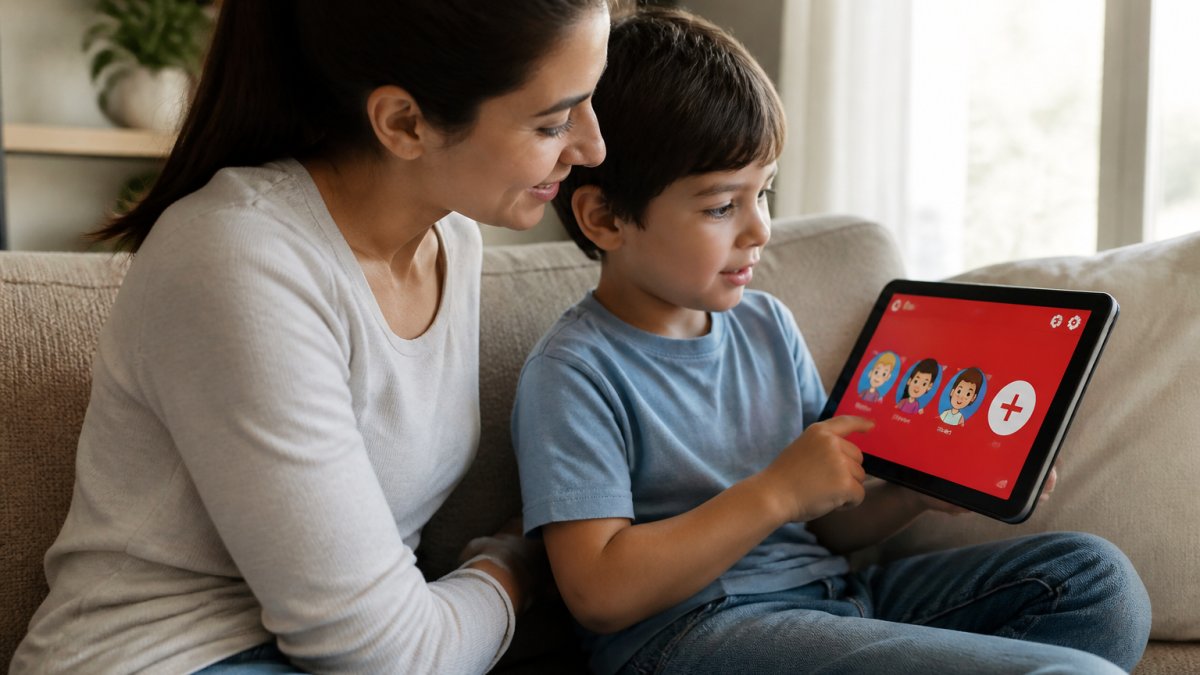
Adding a child profile on YouTube Kids takes about five minutes on most devices.
On Mobile and Tablet Devices:
- Open the YouTube Kids app (download it free from your app store if you haven't already)
- Tap your profile icon in the top right corner
- Select "Add a child" or "Create a profile"
- Enter your child's name and birthdate
- Choose an avatar and color theme
- Tap "Create" to finish
The app then asks you to set content restrictions: "Younger" (ages 3-7), "Older" (ages 8-12), or "Unrestricted" (teen). This determines what appears in search results and recommendations.
Each child profile has its own watch history and recommendations, so create separate profiles for each child, otherwise the 4-year-old inherits the 10-year-old's suggestions.
On Desktop:
- Go to YouTube.com and sign in to your parent account
- Click your profile icon in the top right
- Select "Create a new profile"
- Choose "Child" from the account type options
- Enter your child's name and age
- Set content restrictions in family settings
Desktop setup is less common but useful for family viewing on a larger screen.
What Happens Next:
Once the profile exists, your child signs in on any device with their own login, keeping watch history and recommendations separate while you retain control from your parent account.
This is where Watchly Player adds real value. YouTube Kids restricts by age but won't let you approve specific videos. Our platform analyzes every video against 21 safety themes, violence, sexual content, hate speech, and more, and ensures children only access parent-approved YouTube content.
YouTube Kids Content Settings by Age
YouTube Kids offers three age categories, each with different content restrictions.
Ages 3-7 (Younger):
The limitation: creators sometimes tag content incorrectly. A video labeled as educational but containing jump scares can still slip through.
Ages 8-12 (Older):
This opens the library to educational content, science videos, and age-appropriate entertainment, assuming kids can handle mild conflict and more sophisticated storytelling.
The risk: "age-appropriate" is subjective. A video about friendship might include bullying scenes. A science video might have graphic imagery.
Unrestricted:
This is essentially regular YouTube with a child account, everything except 18+ videos, with the algorithm in full control.
This setting defeats the purpose of YouTube Kids. If you're using it, you're not supervising, you're hoping the algorithm stays responsible.
Customizing Watch Time Limits:
All three settings let you set daily watch time limits in Family Link by selecting your child's profile and choosing maximum daily minutes.
Watch time limits reset at midnight, so if your child uses the full limit by 3 PM, they're done for the day.
Set limits by school day vs. weekend, 60 minutes on weekdays, 120 on weekends, to prevent all-day scrolling while allowing reasonable entertainment.
Watchly Player enforces these limits automatically. You set a bedtime window, and videos simply won't play after that time.
How to Approve Videos on YouTube Kids
YouTube Kids has no built-in approval system; instead, you curate what your child can find.
Method 1: Search Restrictions
Go to your parent account settings and toggle "Search" on or off.
This is the most restrictive option, your child can't discover anything new, only what you've explicitly added.
Method 2: Approved Channels
Create a list of channels you trust. Your child can watch anything from those channels, but nothing else.
To do this:
- In Family Link, select your child's profile
- Go to "Approved content"
- Add specific YouTube channels by name
- Your child can only watch videos from those channels
This gives your child some discovery freedom within a safe zone.
Method 3: Playlists
Create custom playlists of specific videos. Your child can watch only videos in those playlists.
This is the most time-intensive method but gives complete control over every video your child sees.
Removing Restricted Content:
If your child watches something inappropriate, remove it from their watch history via your parent account by selecting their profile and deleting specific videos.
This doesn't prevent them from watching it again, but it keeps your child's recommendations cleaner.
The Watchly Player Difference:
None of these methods actually analyze video content in real time. You're relying on titles, descriptions, and channel reputation.
Watchly Player analyzes the actual transcript of every video. Our AI identifies content that violates your safety standards, even if the title seems innocent.
How to Block Inappropriate YouTube Videos for Kids
Blocking inappropriate content requires a multi-layered approach. YouTube's built-in tools are a starting point, not a complete solution.
Using Search Restrictions:
The simplest block is turning off search entirely.
Go to Family Link settings, select your child, and toggle "Search" off. Your child sees only content you've approved.
The trade-off: this removes all discovery. Your child becomes entirely dependent on you for new content.
Content Filtering by Category:
YouTube Kids lets you filter by content type.
To set this up:
- Open Family Link on your parent device
- Select your child's profile
- Go to "Content settings"
- Toggle categories on or off
This works reasonably well for broad categories, but it's not granular.
Disabling Comments:
Comments are where much of YouTube's inappropriate content hides.
In Family Link, toggle "Comments" off. Your child can watch videos but can't read or post comments.
This is one of the most effective single settings you can enable.
Disabling Autoplay:
Autoplay is YouTube's rabbit hole engine. Your child finishes one video, and the next starts automatically.
Turn off autoplay in your child's account settings. Your child must actively choose the next video.
This simple change dramatically reduces accidental exposure to inappropriate content.
Watchly Player's Comprehensive Approach:
These YouTube settings are helpful, but they're reactive. You're blocking categories or channels after problems occur.
Watchly Player is proactive.
We also eliminate ads entirely.
We remove comments, disable autoplay, and manage watch time automatically.
Common Setup Mistakes and Troubleshooting
Most problems with child profile creation for YouTube stem from a few repeated mistakes.
Mistake 1: Creating a Supervised Account Instead of YouTube Kids
Parents often skip YouTube Kids and go straight to a supervised account because they think it's simpler. It's not.
Use YouTube Kids for children under 8. Supervised accounts are for older children who need more independence.
Mistake 2: Setting Watch Time Limits Too High
Parents set generous limits to avoid conflicts. Then they're shocked when their child watches four hours a day.
Start with 60 minutes on school days. You can always increase it. You can't take back hours already lost.
Mistake 3: Not Checking Your Child's Watch History
Your child's watch history reveals what they're actually watching. Check it weekly.
Mistake 4: Forgetting to Update Age Settings
As your child ages, their content restrictions should change. Move them from "Younger" to "Older" settings when appropriate.
Troubleshooting: "My child can't find a video they want to watch"
This usually means the video isn't available in their age category. Check the video yourself on your account.
Troubleshooting: "Autoplay keeps turning back on"
Some videos override your autoplay setting. If it persists, the video might be from a channel that doesn't respect parental controls.
Troubleshooting: "My child is watching videos I didn't approve"
This means search is enabled and they're finding content outside your approved channels. Either turn off search or audit your approved channel list.
Beyond Basic Profiles: A Comprehensive Approach to Child Safety
A child profile YouTube setup is foundational, but it's not enough by itself.
Start with conversation. Talk to your child about why you're monitoring their content.
Set clear expectations. Your child should know what content is allowed and why.
Review content regularly. Don't just set restrictions and forget them. Watch videos your child is watching.
Use multiple tools. YouTube's built-in controls are helpful but not comprehensive.
Our platform analyzes transcripts, not just titles. We catch context that category filters miss.
Monitor for changes in behavior. If your child becomes withdrawn, anxious, or aggressive, it might reflect what they're watching.
Stay updated on YouTube changes. YouTube updates its parental controls regularly.
Consider your child's developmental stage. A video appropriate for an 8-year-old might disturb a sensitive 6-year-old.
YouTube's algorithm is designed to keep children watching. It doesn't care about their wellbeing, it cares about engagement metrics.
The good news: structured oversight works.
A well-configured child profile on YouTube, combined with tools like Watchly Player, gives you that control.
Start with the basics: create a YouTube Kids profile, set age-appropriate restrictions, disable comments and autoplay.
Your children deserve a safe digital environment. With the right setup, you can give them that.
Frequently Asked Questions
What is the difference between a YouTube Kids profile and a supervised YouTube account?
A YouTube Kids profile is a simplified, filtered version of YouTube designed for young children with restricted search and content curation. A supervised YouTube account is a regular YouTube account linked to a parent account, giving older children more independence while allowing parental monitoring. YouTube Kids profiles work best for ages 4-8, while supervised accounts suit ages 9-12. Both restrict inappropriate content but differ in features and independence levels.
Can I create separate YouTube Kids profiles for each child?
Yes. Google allows signed-in parents to create a separate YouTube Kids profile for each child in their household. Each profile maintains its own viewing preferences, watch history, and content restrictions. This lets you customize settings by age and individual interests, ensuring each child sees age-appropriate content tailored to their needs.
How do I block inappropriate YouTube videos for kids?
Use YouTube Kids' content filtering settings to restrict videos by age category (Preschool, Younger, Older). Disable search entirely for younger children to prevent accidental discovery of unsuitable content. Turn off comments and autoplay to reduce exposure to inappropriate suggestions and user interactions. For maximum safety, manually curate approved channels and videos rather than relying on automated filtering alone.
What age do children need to be to have their own YouTube channel?
Children under 13 cannot create a YouTube channel independently; a parent or guardian must set up and manage the account. For ages 13 and older, YouTube allows account creation, though parental oversight remains advisable. If you want a child under 13 to upload videos, you'll need to manage the channel through your own account and designate it as child-directed content.
Setting up proper parental controls takes time, but it's time well spent. Watchly Player simplifies the process by analyzing video content before your child sees it, enforcing screen time automatically, and protecting your family's data. Start with a free trial to see how AI-powered transcript analysis catches inappropriate content that category filters miss.