Last Updated: November 5, 2026
Quick Summary
To review a child's YouTube watch history, open the YouTube app, tap the profile picture, then Settings, History & privacy, and Watch history. On a browser, sign in to the child's Google account and select History from the menu. Note that signed-out or private viewing never appears in the history.
- The history list runs newest to oldest, so the top shows what your child watched today.
- Give the history a few minutes after a session ends before checking, since it does not update instantly.
- YouTube Kids and supervised accounts keep separate records, so check both apps if your child uses both.
- Pausing watch history stops new entries from being logged, which also hides activity from you.
- Turning autoplay off is the single highest-impact setting most parents never touch.
Table of Contents
- Where to Find YouTube Watch History on Your Child's Device
- How to Check YouTube Watch History When You Don't Share a Device
- YouTube Kids vs Supervised Accounts: What Parents Can Actually See
- YouTube Parental Controls for Kids That Shape What Appears in History
- When and How to Pause YouTube Watch History
- How to Block Inappropriate YouTube Videos Before They Reach Your Child
- Start Curating Your Child's YouTube Library with Watchly Player
- Frequently Asked Questions
Where to Find YouTube Watch History on Your Child's Device
Learning how to review a child's YouTube watch history starts with knowing exactly where the record lives.
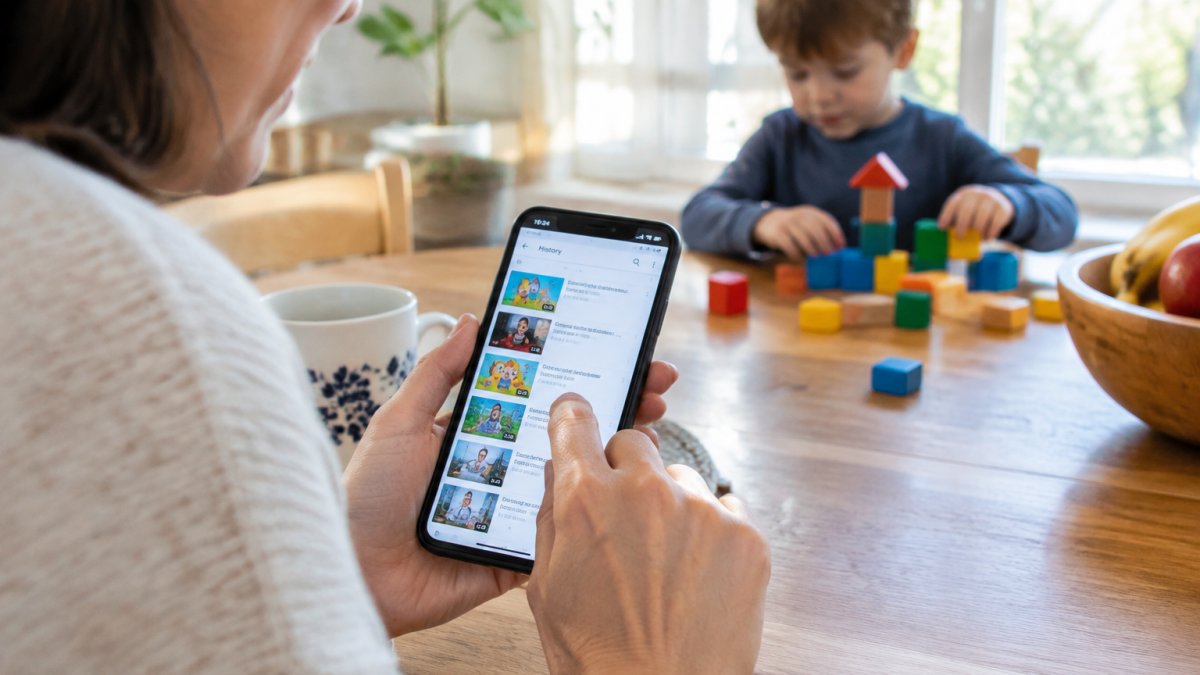
YouTube watch history is a running log of every video played on an account, saved in order with titles and timestamps.
Here is the fastest path on most devices:
- Open the YouTube app and tap your child's profile picture
- Tap Settings, then History & privacy
- Tap Watch history to see the full list
The list shows video titles, channels, and when each one played. That last detail matters more than most parents realize.
Watch out: if your child uses the app while signed out or in a private window, that activity never enters the history at all.
Checking History in the YouTube App on Phone and Tablet
On phones and tablets, the history lives inside the app itself. The steps are nearly identical on Android and iOS:
- Open YouTube and tap the profile icon in the corner
- Choose Settings
- Tap History & privacy
- Tap Watch history
Scroll slowly. The order runs newest to oldest, so the top of the list shows what your child watched today.
Checking History in a Browser on a Laptop or Family Computer
On a laptop or family computer, open a browser and sign in to your child's Google account. Go to the YouTube homepage, click the menu icon, and select History. The browser view shows the same list, plus a search bar you can use to jump to a specific day.
One insider tip: the browser version often loads faster and shows more entries per screen. If you want to scan a full week, do it here.
How to Check YouTube Watch History When You Don't Share a Device
You do not need to grab your child's phone to see their YouTube activity. If your child's account is linked to yours through Family Link or a supervised account, you can check from your own phone. The key is understanding what actually syncs, what does not, and how to read the timestamps once you get there.
Here is the remote-check path that works on most supervised accounts:
- Open the YouTube app on your own device
- Tap your profile picture and switch to your child's profile
- Go to Settings, then History & privacy, then Watch history
A common mistake is assuming the history updates instantly. Give it a few minutes after a session ends before you check.
What Timestamps Actually Tell You
YouTube records when a video played, but the display is not a precise forensic log. On most accounts you see a relative time (for example, "2 hours ago") rather than an exact clock time, and the granularity gets coarser as the entry ages. That is enough to answer "was this watched during homework time?" but not enough to prove a precise minute.
Why the List May Be Incomplete
Even with a linked account, several things can hide activity:
- Signed-out viewing never enters the account history at all
- Private or incognito windows leave no trace in the account
- Paused history stops new entries from being logged
- Multiple profiles on one device split activity across accounts, so you may be looking at the wrong profile
Watch out: a short history is not proof of a light week. It can mean the record was paused, cleared, or never logged because the child watched while signed out.
Checking From a Family Computer Instead
If the child uses a shared laptop, sign in to their Google account in a browser and open YouTube, then select History from the menu.
Uncontrolled YouTube is a real threat to your children, and there are hundreds of research papers documenting how recommendation systems pull young viewers toward content no parent would approve. Establishing these boundaries is a vital step toward managing toddler screen time while ensuring that the digital environment remains a constructive space for development.
YouTube Kids vs Supervised Accounts: What Parents Can Actually See
The three account types show parents very different levels of detail. That difference decides how much you can actually verify, and it is the part most guides skip. Here is a concrete comparison of what history is visible in each.
YouTube Kids is a separate app with its own locked-down library. You can see what your child watched inside the app, but the history is basic and may not sync cleanly to a parent's main YouTube account.
Supervised accounts run inside the main YouTube app with content settings applied by a parent, and they are linked to a parent account through Family Link.
Why Activity May Not Sync Between Apps and Accounts
A common source of confusion is expecting YouTube Kids history to appear in the main YouTube app, or vice versa. They are separate products with separate records. If your child watches in YouTube Kids on a tablet and in the main app on a phone, you are checking two different lists.
Watch out: if your child has both apps installed, check both. Do not assume one history covers the other.
Which Account Type Should You Choose?
If your priority is a locked-down library and you accept a simpler history, YouTube Kids is the easier starting point.
For a full side-by-side breakdown of strengths and limits, see our YouTube Kids vs supervised accounts comparison. If you are still deciding whether the kids app is trustworthy enough to rely on, our honest YouTube Kids safety review covers what holds up and what does not.
The three account types show parents very different levels of detail, which decides how much you can actually verify.
| Account type | Where it runs | What parents can see |
|---|---|---|
| YouTube Kids | Separate app with its own locked-down library | Basic history inside the app; may not sync cleanly to parent's main account |
| Supervised accounts | Main YouTube app with parent-applied content settings | Linked to a parent account through Family Link; fuller, syncable record |
| Signed-out or private viewing | No account signed in | Never enters the account history at all |
YouTube Parental Controls for Kids That Shape What Appears in History
Controls do more than block. They quietly change what ends up in the history in the first place.
Start with these built-in settings:
- Restricted Mode filters mature content across the app
- Content settings on supervised accounts limit what can play
- Approved content only locks the account to channels you pick
- Autoplay off stops the recommendation chain that pulls kids down rabbit holes
That last one deserves attention. Uncontrolled YouTube is a real threat to your children, and autoplay is how most of the damage happens.
Turning autoplay off is the single highest-impact setting most parents never touch.
If you want a wider view of the tools available, our guide to the best parental controls for YouTube lays out the options.
When and How to Pause YouTube Watch History
Sometimes the right move is to stop the record entirely.
Here is how to pause YouTube watch history:
- Open YouTube and go to Settings
- Tap History & privacy
- Tap Pause watch history and confirm
While paused, new videos will not appear in the list. Your child can still watch, but nothing gets logged.
Watch out: pausing history also hides activity from you.
You can delete individual entries too. Tap the three dots beside any video and choose Remove from watch history. A full clear is available under the same menu.
How to Block Inappropriate YouTube Videos Before They Reach Your Child
Reviewing history is reactive. Blocking is proactive, and it is where the real protection happens.
Use these steps to block content before it reaches your child:
- Block channels you do not trust by tapping the three dots on any video and choosing Don't recommend channel
- Whitelist approved channels so only those can play on a supervised account
- Report and block any video that slips through
- Review the history weekly to catch new channels early
For a step-by-step walkthrough of pre-approving channels, our guide to whitelisting YouTube channels covers the full process.
The honest truth: manual blocking works, but it is a treadmill. New channels appear faster than any parent can review them. That is the gap Watchly Player was built to close.
Talking to Your Child About What You Find
A history full of questionable videos is a conversation, not a courtroom. How you open it decides whether your child shuts down or opens up.
Try these approaches:
- Lead with curiosity, not accusation: "I saw you watching something about X. What did you think of it?"
- Explain your reasoning: "I check because the app can suggest things that are not good for kids."
- Set rules together so your child has a say
- Keep the tone calm, even when you are alarmed
Age matters here. A seven-year-old needs simple rules. A twelve-year-old needs reasons and some trust. If you want age-by-age scripts that cut the resistance, our guide on talking to kids about internet safety without a fight gives you the exact words.
Start Curating Your Child's YouTube Library with Watchly Player
Checking history tells you what already happened. You can also decide what can happen at all.
That is the shift we built Watchly Player around. Instead of chasing the algorithm, you expose your kids to the best of YouTube and nothing else. Our platform gives you:
- A parent-approved library only, with every video screened by AI against 21 safety themes
- Customizable daily watch times and bedtime windows that are enforced automatically
- Separate profiles for each child, each with its own library and limits
Uncontrolled YouTube is a threat to your children, and there are hundreds of research papers documenting the risks. You do not have to accept that as the price of letting them watch.
Get started with Watchly Player and give your kids the good parts of YouTube, with none of the rest.
Frequently Asked Questions
Can parents view a child's YouTube watch history if the child uses their own account?
Only if the child's account is set up as a supervised account through YouTube's family settings or linked to a family group. With a supervised account, the parent account can see viewing activity and manage content settings from the parent's own device. A standard child account that isn't linked gives parents no visibility, so setting up supervision before your child starts watching is the step that makes history review possible at all.
How do I pause YouTube watch history so videos stop being tracked?
Open YouTube, go to Settings, then History & privacy, and turn on Pause watch history. While it's paused, videos your child watches won't appear in the history list, and YouTube also stops using those views to shape recommendations. Pausing is useful for privacy, but it also means you lose the record you'd otherwise review, so decide which matters more before switching it on.
What should I do if I find inappropriate videos in my child's history?
Note the channel and video titles, then block the channel and report the video from its menu. Next, review your content settings and tighten restricted mode or the YouTube Kids content level. For repeat exposure, a curated library where only parent-approved videos are available removes the guesswork. After the technical steps, talk with your child calmly about what they saw rather than reacting in the moment.
Does YouTube Kids show parents what a child has watched?
YouTube Kids has limited built-in reporting, and it doesn't offer a full watch history view for parents in the app itself. You can check what's available in the child's profile settings, but for a complete picture of viewing activity across devices, a supervised account or a parent-controlled player gives you more visibility. Many families combine YouTube Kids with a separate tool that logs or restricts viewing.