Table of Contents
- Why Uncontrolled YouTube Is a Threat to Your Children
- Understanding YouTube Whitelisting: What It Is and How It Works
- How to Whitelist YouTube Channels Step by Step
- How to Block Inappropriate YouTube Videos Before They Play
- Best YouTube Filtering Tools for Parents in 2026
- Managing YouTube Screen Time for Children
- Troubleshooting Common Whitelist Issues
- Conclusion
- Frequently Asked Questions
Last Updated: September 29, 2026
Why Uncontrolled YouTube Is a Threat to Your Children
YouTube removed 2,732,395 channels between April and June 2026 alone, according to the YouTube Community Guidelines Transparency Report. That number tells you something uncomfortable: bad content exists at a scale no parent can monitor by hand.
Hundreds of research papers back this up. Studies on algorithmic recommendation systems show that a single click can send a child down a rabbit hole of increasingly extreme videos within minutes.
Understanding YouTube Whitelisting: What It Is and How It Works
Whitelisting YouTube means creating an approved list of channels your child can watch and blocking everything else by default, the opposite of the standard model, which filters out bad content after the fact. Reactive blocking fails constantly: new channels appear daily, and automated filters miss context, sarcasm, and dog whistles. A whitelist flips the logic: nothing plays unless you said yes.
There are three main ways to build a whitelist:
- Google Family Link for supervised child accounts
- Smart TV and tablet settings with per-app restrictions
- Third-party filtering tools that replace the YouTube app entirely
Content Whitelisting vs. Copyright Whitelisting: Two Different Jobs
These two terms get confused constantly. If you searched for "how to whitelist YouTube channels" and landed on a page about copyright claims, you are in the wrong place.
Why the Distinction Matters for Parents
Most search results blur these together, which is why so many parents end up on creator-focused pages about copyright claims that will not help you block a YouTube channel from your child's tablet. If your goal is protecting your child, ignore anything about Content ID or monetization and focus on the parental control tools below.
The Three Layers of Parental Whitelisting
Parental whitelisting works best when you combine layers. No single method is airtight.
- Account-level: Google Family Link approves channels for a supervised account, following the child across devices signed into that account.
- Device-level: Smart TV app locks and tablet profiles restrict YouTube on a specific device, but do not follow the child elsewhere.
- App-level: Dedicated filtering apps replace YouTube with a curated library, the most robust, because they control what plays, not just which app opens.
How Watchly Player Fits In
Watchly Player is an app-level whitelisting tool. It replaces the YouTube app with a library containing only videos you have approved, and because it analyzes video transcripts against 21 safety themes using AI, it catches problematic videos even on channels you trust, the layer most parental control tools miss.
How to Whitelist YouTube Channels Step by Step
If you can install an app and tap a few buttons, you can whitelist YouTube channels. Before you start, decide which device your child will actually use: the setup path differs for phones, tablets, and smart TVs, and the biggest mistake is assuming they sync automatically. They do not, you will configure each device separately, but the steps are short.
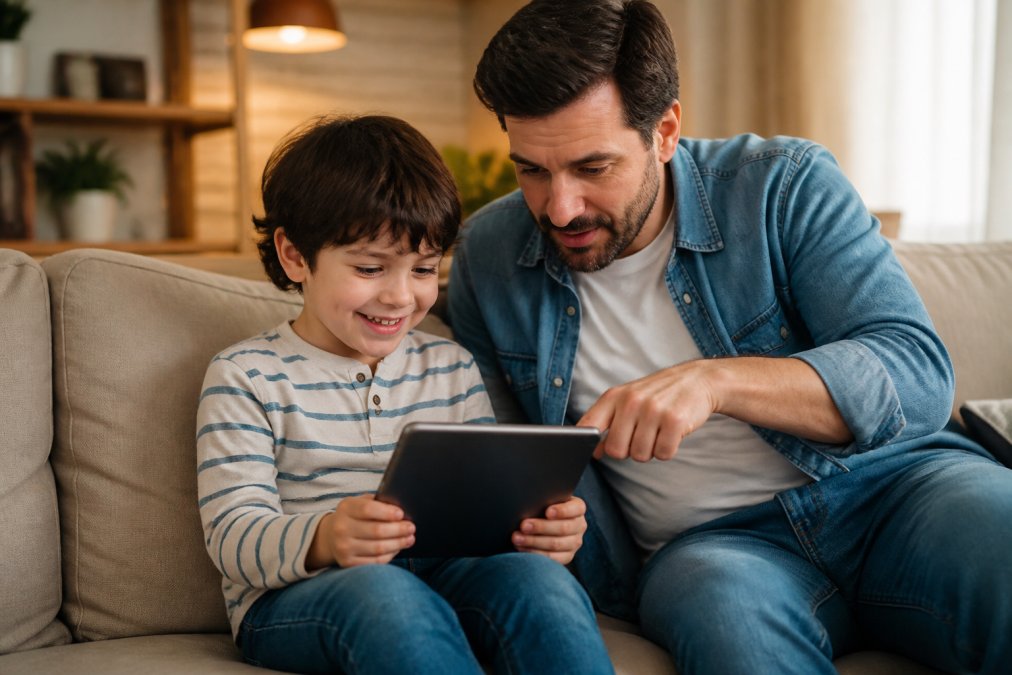
The No-Code Path: Google Family Link
Google Family Link is the free, built-in option and the right starting point for most families. Setup takes about 15 minutes.
- Install Google Family Link on your phone and on your child's device.
- Create a supervised Google Account for your child if they do not already have one.
- Sign in to YouTube on your child's device with that supervised account.
- In Family Link, open Controls, then Content restrictions, then YouTube.
- Select "Approved content only" instead of "Try to block mature content." This flips the logic from reactive blocking to proactive approval.
- Add channels one by one by searching for them in the approval screen. You can approve a channel, a video, or a playlist.
- Test the setup by opening YouTube on your child's device and confirming only approved channels load.
Cross-Platform Setup: Phone, Tablet, and Smart TV
Whitelisting on a phone does not automatically whitelist the living room TV. Handle each platform separately.
- Android phones and tablets: Family Link works natively. Once you set "Approved content only," the YouTube app on that device respects it.
- iPads and iPhones: Family Link does not manage YouTube on iOS the same way. Use Screen Time with a passcode your child does not know, combined with the YouTube Kids app's channel approval feature, though YouTube Kids has a broader definition of "approved" than most parents expect.
- Samsung and LG smart TVs: Most do not support Family Link directly. Use the built-in app lock to restrict YouTube entirely, then allow it only during supervised sessions, or cast from an approved device.
- Amazon Fire tablets: Use Amazon Kids profiles. You can add specific YouTube channels to a child profile, but the approval list is separate from Family Link.
The Faster Alternative: Dedicated Filtering Apps
If the manual approval grind sounds exhausting, a dedicated filtering app removes most of it. Watchly Player replaces the YouTube app entirely with a curated library: you approve channels once, and the app enforces the whitelist across devices without you touching router settings or browser extensions.
What to Do When Your Child Bypasses the Whitelist
Kids are clever. If your child suddenly has access to unapproved channels, check three things:
- A second Google account. Kids often add a personal account to escape restrictions. Remove it in device settings.
- A different browser or incognito mode. Family Link restrictions apply to the YouTube app, not always to youtube.com in a browser. Block browser access or use a filtering app that covers both.
- A friend's device. No whitelist travels with your child, which is why app-level filtering that follows the child, not the device, is more robust.
How to Block Inappropriate YouTube Videos Before They Play
The most reliable way to block inappropriate YouTube videos is to stop using the standard YouTube app altogether. Its recommendation engine is designed to maximize watch time, not protect your child.
Three layers of protection work together:
- Network-level blocking: Your router or DNS provider blocks YouTube domains entirely on certain devices.
- Browser extensions: Chrome extensions let you manually enter approved channel names to override YouTube's default feed.
- Dedicated apps: Tools that replace YouTube with a curated library.
Best YouTube Filtering Tools for Parents in 2026
The best filtering tool for most families is one that defaults to blocking everything and requires you to approve channels manually. That is the model Watchly Player uses, and it is the model child safety researchers keep pointing toward.
Here is how the main options compare.
| Tool Type | Setup Time | Bypass Risk | Best For |
|---|---|---|---|
| Google Family Link | 15-20 min | Medium | Free, basic approval |
| Smart TV app locks | 10 min per device | Low | Living room viewing |
| Browser extensions | 5 min | High | Older kids, quick fixes |
| Dedicated filtering apps | 10 min | Low | Full control, multiple kids |
What Makes Watchly Player Different
Watchly Player analyzes video transcripts against 21 safety themes using AI, rather than relying on channel-level approval alone. A channel you trust can still publish a video you would not want your child to see, and transcript analysis catches those individual videos before they play.
Other features that set it apart:
- Zero ads, comments, or recommendation algorithms
- Separate profiles for each child with their own library and limits
- Automatic enforcement of daily watch time and bedtime windows
- No selling or renting of your family's data
Managing YouTube Screen Time for Children
- Daily watch time: Set a hard cap, not a suggestion.
- Bedtime windows: Block access during set hours automatically, so you are not the one saying no at 9pm.
- Intermission breaks: Force a pause every 20-30 minutes to break the autoplay loop.
Managing screen time is where most free tools fall short: they show usage data after the fact instead of stopping the session in real time.
Troubleshooting Common Whitelist Issues
Whitelist problems usually trace back to one of four causes.
Conclusion
The scale of inappropriate content on YouTube is not something any parent can manage manually. With millions of channels removed every quarter and new ones appearing daily, reactive blocking will always be one step behind.
Frequently Asked Questions
What is whitelisting in YouTube?
Whitelisting means creating an approved list of channels your child can watch. Instead of blocking bad content after the fact, you only allow specific vetted channels. This approach prevents exposure to the 2,732,395 channels YouTube removed between April and June 2026 for policy violations. Tools like Watchly Player use AI to analyze video transcripts against 21 safety themes, so only parent-approved content reaches your child.
How do I restrict YouTube to only certain channels?
You can use Google Family Link to approve channels for child accounts, or set up a whitelist system through third-party tools. For a more automated approach, Watchly Player analyzes transcripts and blocks anything that does not meet your safety criteria. It also removes ads, comments, and autoplay recommendations, creating a closed library of parent-approved videos only.
Is there a native way to whitelist channels on the standard YouTube app?
YouTube's native parental controls offer limited whitelisting. YouTube Kids lets you approve channels, but the app's search and recommendation algorithms can still surface unwanted content. Google Family Link provides more control for child accounts but requires manual approval for every channel. For granular control, parents turn to dedicated filtering tools that default to block-all and require explicit approval for each channel.
How do I manage screen time on YouTube for my kids?
Set daily watch limits and bedtime windows through your chosen parental control tool. Watchly Player enforces these rules automatically, so your child cannot sneak extra viewing time. You can also schedule intermission breaks and set separate profiles for each child. This removes negotiation from the equation and gives you remote monitoring capabilities.