Table of Contents
- Why Controlling YouTube Autoplay Matters for Your Child
- How to Turn Off Autoplay on YouTube App
- Disable YouTube Autoplay on iPhone
- Disable YouTube Autoplay on Android
- Stopping Autoplay on Desktop and Home Feed
- Set Content Level for YouTube Kids with Family Link
- Managing Parental Controls Beyond Autoplay
- Troubleshooting Autoplay Settings That Revert or Don't Appear
- Frequently Asked Questions
Last Updated: October 11, 2026
Why Controlling YouTube Autoplay Matters for Your Child
Uncontrolled YouTube is a genuine threat to your children.
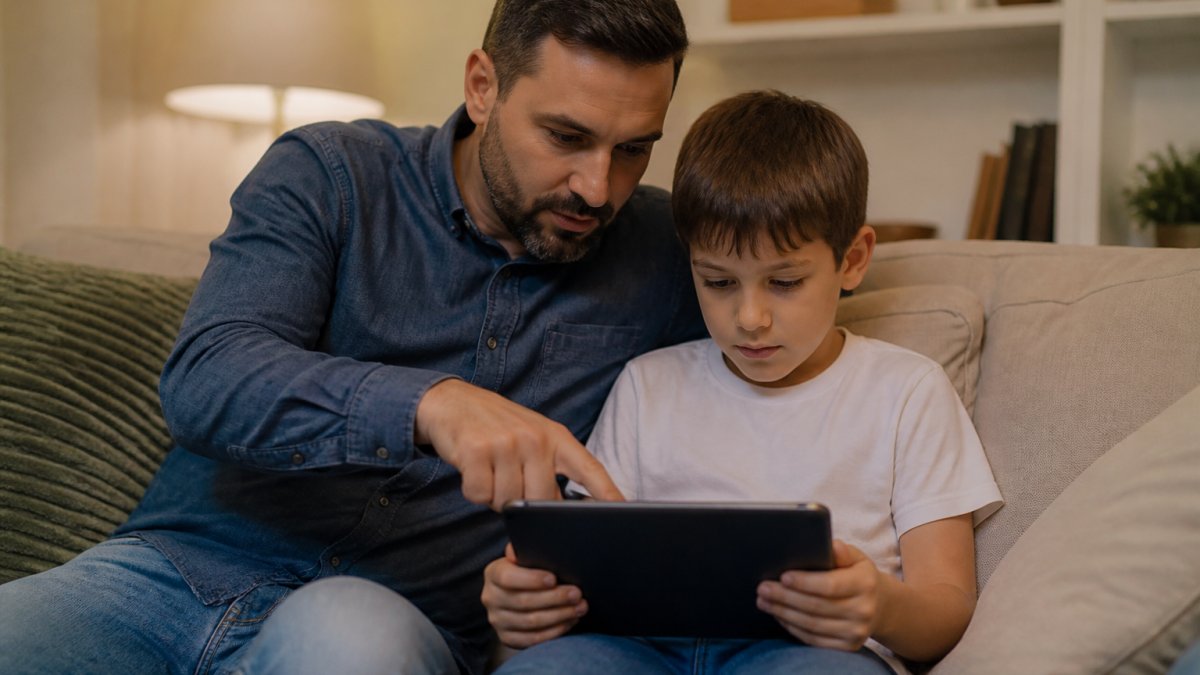
Autoplay means the next video starts automatically, your child doesn't choose it, YouTube's algorithm does. That's where the real danger lies.
When you stop YouTube autoplay for kids, you regain control. Your child watches what you approve, then the video ends. No automatic progression to the next recommendation. No hidden exposure to content you haven't vetted.
A 2024 study found significant associations between anxiety and inhibitory control with heavy YouTube usage. Autoplay removes the natural stopping point, the moment when a child would otherwise ask permission or move on to another activity.
How to Turn Off Autoplay on YouTube App
To stop YouTube autoplay for kids, open the YouTube app, tap your profile icon, select Settings > Playback and Performance, and toggle off Autoplay. When disabled, videos stop when they end and your child must manually select the next one. This setting applies across all devices using that account.
Disable YouTube Autoplay on iPhone
On iPhone, open YouTube, tap your profile icon, select Settings > Playback and Performance, and toggle off Autoplay. For added security, use Screen Time (Settings > Screen Time > Content & Privacy Restrictions > Apps) to prevent your child from accessing YouTube's Settings app.
Disable YouTube Autoplay on Android
On Android, open YouTube, tap your profile icon, select Settings > Playback and Performance, and toggle off Autoplay. For additional control, use Google Family Link to manage app access, screen time limits, and lock down settings so your child cannot change them without approval.
Stopping Autoplay on Desktop and Home Feed
Desktop browsing requires a slightly different approach. When your child watches YouTube on a computer or laptop, autoplay still operates unless you disable it.
Desktop Browser Steps
Sign into YouTube and click your profile icon in the top right corner. Select "Settings" from the dropdown menu. On the left sidebar, click "Playback and performance."
Find the "Autoplay" section. You'll see two toggles: one for "Autoplay on Home" and one for "Autoplay on Up Next." Turn both off. The Home feed autoplay controls whether videos auto-play when your child scrolls the homepage. Up Next controls whether the next video in a series plays automatically.
Disabling both removes the autoplay experience entirely on desktop.
Turning Off Home Feed Autoplay
Home feed autoplay encourages passive scrolling and creates an endless stream of recommendations. Turn off "Autoplay on Home" so videos display as thumbnails only, your child must click to watch, reducing passive consumption and giving you visibility into their choices.
| Device Type | Autoplay Location | Steps to Disable |
|---|---|---|
| iPhone | YouTube app > Settings > Playback and performance | Toggle "Autoplay" off |
| Android | YouTube app > Settings > Playback and performance | Toggle "Autoplay" off |
| Desktop | YouTube.com > Settings > Playback and performance | Toggle both "Autoplay" options off |
| YouTube Kids | Family Center > [Child's account] > Autoplay | Disable in parental settings |
Set Content Level for YouTube Kids with Family Link
YouTube Kids operates differently from standard YouTube, and autoplay behaves distinctly in the Kids app. Understanding these differences is essential because a child using YouTube Kids encounters a separate autoplay system that requires parent-level intervention to disable.
How Autoplay Works in YouTube Kids
In YouTube Kids, autoplay can only be controlled through Family Center, the parent's administrative dashboard. Your child cannot disable it from within the app, even if they know your password. This prevents circumventing parental restrictions, but requires you to actively manage autoplay through Family Center.
Disabling Autoplay in YouTube Kids via Family Center
Open Family Center on your phone, tablet, or computer by visiting Family Center or accessing it through your Google Account settings. Sign in with the parent or guardian account linked to your child's YouTube Kids profile.
Select your child's account from the list. Tap or click "Settings." Look for the "Autoplay" option, it appears as a toggle switch. Turn it off. The change takes effect immediately across all devices where your child uses YouTube Kids with that account.
Unlike standard YouTube, where autoplay settings sync across devices automatically, YouTube Kids autoplay settings are tied to the Family Center configuration. If your child uses YouTube Kids on multiple devices (phone, tablet, smart TV), disabling autoplay in Family Center applies to all of them simultaneously.
Content Level and Autoplay: How They Work Together
Family Center also allows you to set a content level ("Younger," "Older," or "Unrestricted") to filter recommendations by age-appropriateness. For maximum protection, disable autoplay AND set content level to "Younger" or "Older" to remove automatic progression while restricting available videos.
Bedtime Windows and Screen Time Limits
Family Center includes bedtime and screen time controls that lock YouTube Kids automatically when limits are reached. Combining these with autoplay-disabled settings prevents both passive, endless viewing and late-night binges that disrupt sleep.
What Your Child Can and Cannot Change
Your child cannot change autoplay, content level, bedtime windows, or screen time limits, these are parent-only settings in Family Center. Use a strong, unique password and enable two-factor authentication on your Google Account to prevent unauthorized changes.
Verifying Autoplay is Disabled in YouTube Kids
Test autoplay by playing a video and letting it finish. If disabled, the app returns to the home screen. If a new video plays automatically, return to Family Center to confirm the toggle is off, wait a few minutes for sync, or clear the app cache and sign back in.
Managing Parental Controls Beyond Autoplay
Beyond disabling autoplay, disable comments on your child's account, enable Restricted Mode to filter mature content, review watch history regularly, and use device parental controls to prevent app updates without permission.
Watchly Player allows you to expose the best of YouTube to your kids by analyzing video transcripts against safety themes before they're seen. Every video is vetted before appearing in your child's library, so you curate the content and your child watches only what you've chosen, no algorithms, no surprises.
Troubleshooting Autoplay Settings That Revert or Don't Appear
Autoplay settings sometimes fail to disable, revert unexpectedly, or don't appear in the settings menu at all. These issues stem from account-sync delays, app-version differences, device-specific settings, or conflicting parental controls. Understanding the root cause is essential to fixing the problem permanently.
Autoplay Settings Revert or Keep Re-Enabling
If autoplay re-enables, check if your child is changing it back (verify watch history and sign-in activity; change your password). Account sync delays may cause autoplay to remain active on other devices for 15-30 minutes. A corrupted app cache can prevent settings changes, clear cache and reinstall. Verify you've disabled both "Autoplay on Home" and "Autoplay on Up Next" on desktop. If Family Link is set up but not working, confirm "App management" and "Device controls" are enabled on Android, or that Screen Time restrictions are on for iOS.
Autoplay Toggle Doesn't Appear in Settings
If the autoplay toggle is missing from the settings menu, you may be looking in the wrong location or using an outdated app version.
Wrong settings menu. On mobile, autoplay controls are in Settings > Playback and Performance, not Settings > General. On desktop, they're in YouTube Settings (top right profile icon) > Playback and Performance in the left sidebar.
Outdated app version. Older versions of the YouTube app have different menu structures. The autoplay toggle may be under "General" settings in very old versions.
YouTube Kids vs. standard YouTube. If you're managing a YouTube Kids account, autoplay controls do not appear in the child's app. Log into Family Center at families.google.com, select your child's account, and look for autoplay settings there.
Restricted account or supervised experience. If your child's account is managed by a school or organization (not a parent), autoplay controls may be hidden or locked by the administrator. Contact the account administrator to request changes to autoplay settings.
Device-Specific Autoplay Issues
On smart TVs, go to Settings > Playback > Autoplay and toggle it off. On desktop browsers, sign into YouTube.com and disable both "Autoplay on Home" and "Autoplay on Up Next" in Settings > Playback and Performance. If multiple accounts are on one device, disable autoplay on each account separately.
Autoplay Appears Disabled But Videos Still Play Automatically
If videos still play automatically, check for background playback (Settings > General) or picture-in-picture settings. Disable YouTube notifications (Settings > Notifications > YouTube) to prevent recommended videos from appearing. On desktop, ensure both "Autoplay on Home" and "Autoplay on Up Next" are disabled.
Testing Autoplay After Troubleshooting
After applying any fix, test autoplay on each device your child uses. Play a video and let it finish without touching the screen. If autoplay is disabled, the video ends and the app returns to the home screen or previous menu. If a new video starts automatically, autoplay is still enabled.
If autoplay is disabled on one device but not another, wait 30 minutes for settings to sync, then test again. If the problem persists after 30 minutes, the devices may have different account configurations or app versions. Verify both devices are signed into the same account and running the latest YouTube app version.
Uncontrolled YouTube is a genuine threat to your children. Hundreds of research papers document how autoplay and algorithmic recommendations can pull kids into increasingly inappropriate content and endless rabbit holes. Persistent autoplay issues can leave your child vulnerable to these risks.
Frequently Asked Questions
How do I turn off autoplay in the YouTube app on my child's device?
Open the YouTube app and tap your profile icon in the top right corner. Select Settings, then Autoplay. Toggle off 'Autoplay on Home' or 'Autoplay on Next' depending on which automatic playback you want to stop. On YouTube Kids, parents can disable autoplay through Family Center in their own Google Account, and the child cannot re-enable it. This stops automatic playback of recommended videos and prevents the continuous viewing cycle that can lead to inappropriate content.
Does turning off autoplay prevent children from finding inappropriate videos?
Disabling autoplay removes one pathway to unwanted content by stopping automatic recommendations and continuous playback. However, turning off autoplay alone does not guarantee all content your child encounters is appropriate. Children can still manually search for and select videos. Research shows uncontrolled YouTube poses risks to children, with hundreds of studies documenting concerns about algorithmic rabbit holes and inappropriate content slipping through filters. Autoplay control is one layer; pairing it with supervised experiences, content filters, and tools like Watchly Player that analyze video transcripts against safety themes provides stronger protection.
Can I disable YouTube autoplay on multiple devices at once?
Autoplay settings are tied to individual device apps and browser profiles, not synced globally across all devices. You must disable autoplay separately on each device your child uses: iPhone app, Android app, desktop browser, and smart TV apps. For YouTube Kids, parents manage settings through Family Center on their Google Account, and those restrictions apply to the child's account across all devices where they are signed in. This means you need to configure settings for each device type your child accesses.
What should I do if autoplay settings keep reverting or don't appear in my app?
If autoplay controls disappear or revert after you disable them, try these steps: update the YouTube app to the latest version from your device's app store, sign out and sign back in to refresh account settings, and clear the app cache (Settings > Apps > YouTube > Storage > Clear Cache on Android, or offload the app on iPhone). Ensure you are in the correct account settings menu and not in a restricted profile. If the problem persists after updating, contact YouTube Support or consider using Watchly Player for automated, parent-enforced controls that cannot be changed by the child.