
Table of Contents
- Why Restricted Mode Matters for Your Family
- How to Enable Restricted Mode on Smart TV
- How to Block Inappropriate YouTube Videos with Parental Controls
- YouTube Parental Controls for Smart TV: Beyond Restricted Mode
- Troubleshooting Restricted Mode Issues
- The Limitations of Built-In Restricted Mode
- Creating a Comprehensive Safety Strategy
- Frequently Asked Questions
Last Updated: September 27, 2026
Why Restricted Mode Matters for Your Family
Uncontrolled YouTube is a significant threat to your children. Hundreds of research papers document how algorithmic recommendations push kids toward inappropriate content, conspiracy theories, and harmful challenges. Without safeguards, a 30-minute session can spiral into hours of exposure to material never intended for young viewers.
Restricted mode smart TV settings exist for exactly this reason. They're your first line of defense against inappropriate videos, autoplay loops, and the recommendation algorithm that thrives on engagement over safety. But here's what most parents don't realize: built-in restricted mode alone isn't foolproof. According to Childnet's research on parental controls, Restricted Mode relies on automated systems to filter content and may not catch all inappropriate videos, necessitating additional oversight or more strong tools.
Watchly Player fills this gap with AI-powered analysis of video transcripts against 21 safety themes, ensuring children only access parent-approved content. Below, we'll show you how to set up restricted mode across TV platforms, where it falls short, and how to build a comprehensive safety strategy.
How to Enable Restricted Mode on Smart TV
Restricted mode smart TV setup varies by operating system but follows the same core process: access settings, locate parental controls, and enable the toggle. Most TVs complete this in under five minutes.
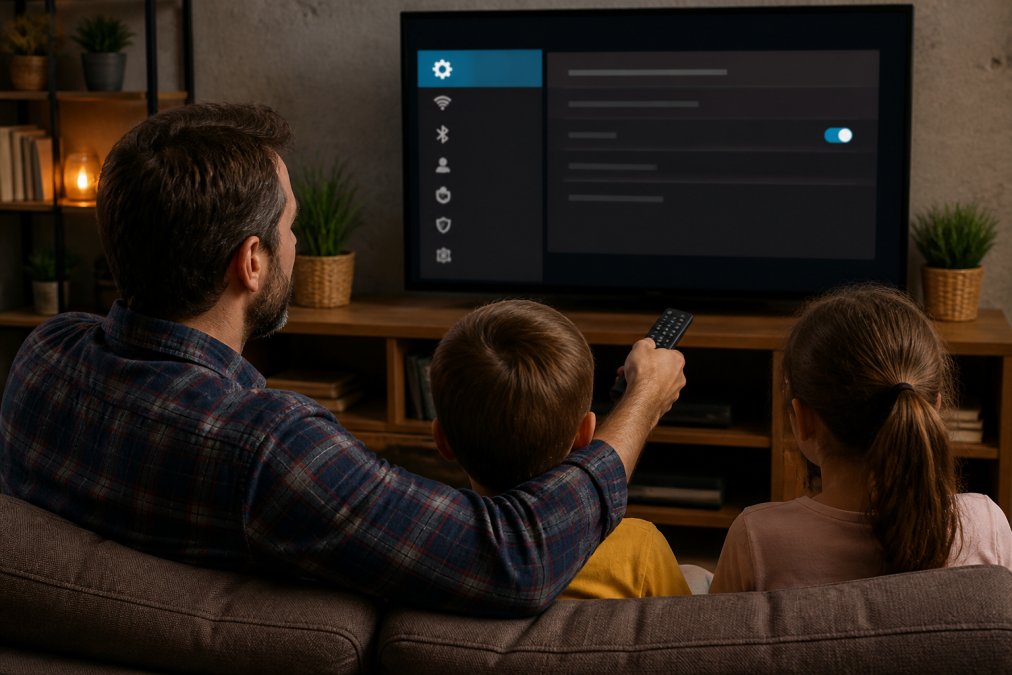
Accessing the Settings Menu
Start at your TV's home screen and look for a gear icon in the top corner or side menu. The exact path varies:
- Samsung TVs: Menu → Settings → General
- LG TVs: Settings gear icon → All Settings → Parental Controls
- Roku devices: Home → Settings → Parental Controls
- Fire TV: Settings → Parental Controls
The principle is the same across all: find the gear icon or "Settings" label and select it.
Navigating to Restricted Mode Settings
Once inside Settings, look for "Parental Controls," "Content Restrictions," or "Digital Wellbeing." Use arrow keys to navigate and press Enter. You'll see options including Restricted Mode, App Restrictions, PIN Protection, and Content Ratings. Restricted Mode specifically targets YouTube and video content.
Enabling the Toggle Switch
Find the toggle switch next to "Restricted Mode" and select it. The switch should change color, typically from gray to blue or green. Press "Yes" or "Confirm" if prompted. Restricted mode is now enabled.
How to Block Inappropriate YouTube Videos with Parental Controls
Parental controls go deeper than restricted mode, letting you set specific rules, create user accounts, and enforce screen time limits.
Using PIN Codes for Access Control
A PIN code prevents children from disabling restricted mode. To add one: Return to Parental Controls → Select "PIN Protection" or "Access Control" → Enter your desired PIN (4-6 digits) → Confirm it → Write it down somewhere safe. Your PIN now protects all parental control settings.
Configuring App-Specific Restrictions
You can restrict access to individual apps like Netflix and TikTok. Return to Parental Controls → Select "App Restrictions" or "Blocked Apps" → Choose which apps children can access → Set content ratings → Save changes.
YouTube Parental Controls for Smart TV: Beyond Restricted Mode
YouTube parental controls on smart TV offer granular control beyond restricted mode: create individual user accounts, set watch time limits, and monitor viewing.
Setting Up Individual User Accounts
Create a separate user account for each child to isolate their watch history and recommendations. Go to Settings → User Accounts → Add User → Enter child's name → Set account type to "Child" or "Restricted" → Enable parental controls → Set a PIN. Each child now has their own monitored profile.
Managing Content Filters Across Devices
Sync settings across devices by using the same Google account, enabling restricted mode on each device, and setting the same PIN. Inconsistent settings create gaps where children can bypass filters on other devices.
Troubleshooting Restricted Mode Issues
Restricted mode sometimes fails silently: settings reset unexpectedly, or it stops working after updates. Here's how to diagnose and fix common problems.
Verify Restricted Mode Is Actually Enabled
Confirm restricted mode is on, it's easy to assume it's active when it's not. Android TV / Google TV: Home → Settings → Apps & Notifications → YouTube → Restricted Mode (verify toggle is blue). Samsung Tizen: Menu → Settings → General → Parental Controls (check "On"). LG WebOS: Settings → All Settings → Parental Controls → YouTube Restricted Mode (verify enabled). Roku: Home → Settings → Parental Controls → Restricted Browsing (confirm "On"). Fire TV: Home → Settings → Parental Controls → YouTube (verify enabled).
Common Causes of Restricted Mode Failure
Problem: Inappropriate videos still appear despite restricted mode being on. Restricted mode relies on automated classification, which misses gray-area content: technically non-explicit but age-inappropriate videos, misleading titles, or newly uploaded content not yet reviewed. What to do: Report the video to YouTube (three-dot menu → Report) → Restart your TV (unplug 30 seconds) → Clear YouTube's cache (Settings → Apps → YouTube → Storage → Clear Cache) → Sign out and back in → Check for firmware updates (Settings → System Update).
OS-Specific Troubleshooting Paths
Android TV / Google TV:
- Restricted mode is managed through your Google account
- If settings keep resetting, sign out of your Google account and sign back in
- Check Settings → Apps & Notifications → Permissions to ensure YouTube has the necessary permissions
- If the YouTube app is outdated, update it from the Play Store
Samsung Tizen:
- Parental controls are stored locally on the TV, not synced to your Samsung account
- If restricted mode keeps turning off, try a soft reset: Settings → Support → Self Diagnosis → Reset
- Check Settings → General → System Manager → Memory Management to ensure the TV has enough storage for settings
LG WebOS:
- Parental controls are tied to the TV's system settings, not your LG account
- If restricted mode fails, try Settings → All Settings → General → Initialization → Soft Reset (this resets settings without erasing apps)
- If that doesn't work, perform a full factory reset (Settings → All Settings → General → Initialization → Factory Reset)
Roku:
- Restricted browsing is managed through your Roku account
- If settings reset, sign out of your Roku account and sign back in
- Check Settings → System → System Update to ensure your Roku is running the latest firmware
- If the YouTube app is outdated, uninstall it and reinstall it from the Roku Channel Store
Fire TV:
- Parental controls are managed through your Amazon account
- If restricted mode keeps turning off, go to Settings → Parental Controls → Manage Your Content and Devices
- Verify that your child's profile has restricted mode enabled
- Check Settings → System → About → System Update to ensure your Fire TV is current
When Restricted Mode Isn't Enough
Even when restricted mode is working correctly, it has blind spots. Videos that pass the filter may still contain:
- Manipulative thumbnails or titles designed to scare or entice
- Autoplay chains that lead from one video to increasingly inappropriate content
- Comments sections filled with harmful links or predatory behavior
- Ads promoting products or services inappropriate for children
- Subtle messaging or conspiracy theories that aren't explicitly flagged
If your child is still accessing concerning content despite restricted mode being enabled and working, the issue isn't a technical glitch, it's a limitation of the filter itself. Uncontrolled YouTube remains a significant threat to children, with hundreds of research papers documenting how algorithmic recommendations can push kids toward increasingly inappropriate content. At this point, you need additional layers of protection.
The Limitations of Built-In Restricted Mode
Here's what restricted mode actually does, and what it doesn't.
What it blocks:
- Sexually explicit content
- Graphic violence
- Profanity-heavy videos
- Self-harm and dangerous challenges
- Some conspiracy theories
What it misses:
- Subtle manipulation and predatory behavior
- Age-inappropriate but technically non-explicit content
- Autoplay rabbit holes (one video leads to another, then another)
- Sponsored content disguised as educational material
- Comments sections filled with harmful links and messages
- Ads promoting inappropriate products to children
Creating a Comprehensive Safety Strategy
Layer 1: Built-in tools, Enable restricted mode on all devices, set strong PINs, create individual user accounts, configure app-specific restrictions.
Frequently Asked Questions
How do I activate Restricted Mode on my smart TV?
Open your smart TV's YouTube app, click your profile icon in the top corner, go to Settings, select General, and toggle on Restricted Mode. The process varies slightly by TV operating system, but the settings menu location remains consistent across most platforms. Once enabled, restricted mode filters out mature content from search results and recommendations.
Can I password protect YouTube parental controls on my smart TV?
Yes. After enabling restricted mode, set a PIN code in your account authentication settings. This PIN prevents others from disabling the restriction without your permission. Store your PIN securely and change it periodically.
What are the limitations of YouTube's built-in Restricted Mode?
Restricted Mode relies on automated systems to filter content and may not catch all inappropriate videos. It cannot block specific creators, remove ads, or prevent autoplay loops that lead children down rabbit holes of increasingly concerning content. Research shows uncontrolled YouTube presents significant risks to children's wellbeing. For comprehensive protection, many parents combine restricted mode with additional tools that offer AI-powered transcript analysis and parent-approved video libraries.
Why is my Restricted Mode not working across all my devices?
Restricted Mode applies per device, not across your entire network. You must enable it separately on each smart TV, tablet, and phone. If it stops working after an update, check your firmware version and toggle the setting off and on again.