Table of Contents
- What YouTube Rabbit Holes Are and Why They Threaten Your Children
- How to Block Inappropriate YouTube Videos with Parental Controls
- How to Disable YouTube Autoplay and Reduce Recommendation Exposure
- Managing Screen Time for Children with Automated Limits
- Using Browser Extensions and Network-Level Blocking
- AI-Powered Content Filtering: A Comprehensive Alternative
- Clearing Watch History and Search History to Reset Recommendations
- Common Mistakes Parents Make When Blocking Rabbit Holes
- Frequently Asked Questions
Last Updated: October 7, 2026
What YouTube Rabbit Holes Are and Why They Threaten Your Children
YouTube's recommendation algorithm learns what your child watches and suggests more of the same, sometimes educational, sometimes increasingly extreme, inappropriate, or disturbing videos you never see, which is why you need to block youtube rabbit holes.
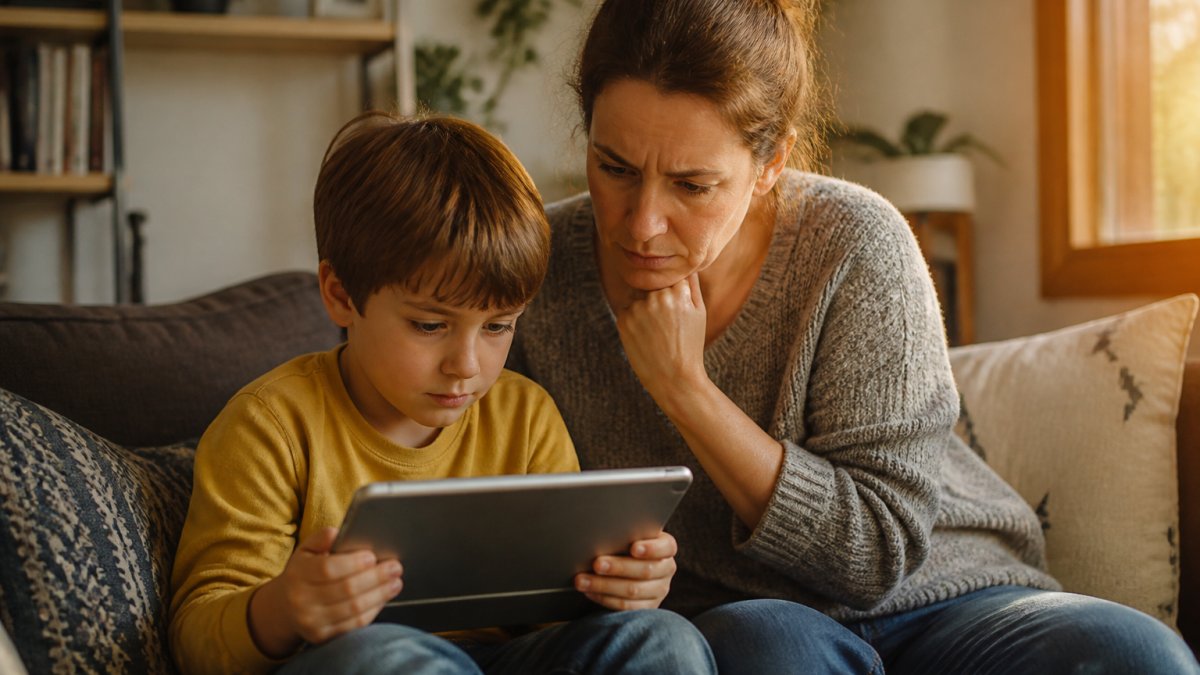
Research from the NYU Center for Social Media and Politics shows that while YouTube's recommendation engine doesn't push the vast majority of users toward extremist content, it does push some users in that direction.
Uncontrolled YouTube exposes children to content designed to capture attention, not serve their wellbeing. You have tools to block YouTube rabbit holes, some built into YouTube, others requiring a dedicated platform.
How to Block Inappropriate YouTube Videos with Parental Controls
YouTube's built-in parental controls aren't perfect, but they're a starting point: restrict content by age rating, disable comments and autoplay, and set screen time limits.
Built-in YouTube Parental Controls Settings
YouTube's Restricted Mode filters out flagged content. To enable it:
- Open YouTube on your child's device
- Scroll to the bottom of the page
- Click "Restricted Mode"
Restricted Mode blocks videos marked potentially inappropriate. It's not foolproof, some bad content slips through and some good content gets blocked, but it catches many rabbit holes before they start. Disabling comments and autoplay also helps: comments expose children to harassment, while autoplay keeps playing video after video, pulling users deeper into rabbit holes.
Device-Level Restrictions
Device-level parental controls work across all apps. On iOS use Screen Time; on Android use Family Link. They let you block apps, set per-app time limits, require approval for new downloads, and see what your child is watching in real time. Because they apply system-wide, your child can't bypass them by switching apps or browsers.
How to Disable YouTube Autoplay and Reduce Recommendation Exposure
Autoplay is the engine of rabbit holes: when a video ends, the next starts automatically, and the algorithm chooses for your child. Disable it and you cut the primary mechanism that feeds rabbit holes.
Turning Off Autoplay on Desktop and Mobile
On desktop:
- Sign in to YouTube
- Click your profile icon (top right)
- Select "Settings"
On mobile:
- Open the YouTube app
- Tap your profile icon
- Select "Settings"
Once autoplay is off, videos stop at the end. Your child must actively choose the next video. This single change reduces watch time and cuts exposure to algorithmic recommendations dramatically.
Hiding Recommendations and Customizing Your Feed
YouTube's recommendation engine drives engagement, and rabbit holes. Reduce its influence by:
- Clearing watch history regularly (Settings > History & Privacy > Clear all watch history)
- Disabling search history (Settings > History & Privacy > toggle off "Search history")
- Using browser extensions that hide the recommendations sidebar
Popular Science recommends blocking distracting elements as one of three core strategies for avoiding rabbit holes. Extensions like YouTube Rabbit Hole Sealant hide the suggested-videos sidebar entirely. Your child sees only the video they chose, nothing more.
Managing Screen Time for Children with Automated Limits
Rabbit holes thrive on unlimited access. The longer children spend on YouTube, the more likely they'll wander into inappropriate content, and the algorithm is engineered to extend sessions. Every autoplay, recommendation, and 'up next' is a psychological trigger; hundreds of research papers on digital media and child development document how variable reward schedules, the same mechanism that makes slot machines addictive, keep young viewers scrolling.
Setting Daily Watch Time Limits
Device-level tools let you cap daily YouTube usage. On Family Link (Android):
- Open Family Link
- Select your child's device
- Tap "Screen time"
Once the limit is reached, YouTube locks until the next day, no arguments, no exceptions, enforced by the device itself.
Set limits by age. These are guidelines, not absolutes. A 60-minute cap on a platform designed to maximize watch time means your child hits the limit mid-rabbit-hole rather than at a natural stopping point, and that interruption is the intervention.
Enforcing Bedtime Windows and Intermission Breaks
Screen time before bed disrupts sleep. YouTube's bright screen and stimulating content keep children awake. Set bedtime windows that lock YouTube access during sleep hours.
On Family Link, create a bedtime schedule:
- Tap "Bedtime"
- Set start and end times
- YouTube locks during those hours
Intermission breaks are equally powerful: after 30 minutes, the app pauses and requires a 10-minute break, interrupting the pull of continuous viewing and giving you a moment to check what they're watching.
But here's the cross-device problem: set a 45-minute limit on the tablet but not the smart TV, and your child simply switches screens.
Why Time Limits Alone Aren't Enough
A time limit stops the session, not the rabbit hole within it, your child can still travel from a harmless video to disturbing content in under 10 minutes. That's why time limits must be paired with content-level filtering. Watchly Player's AI-powered transcript analysis ensures that even within allowed screen time, every video is parent-approved. You expose the best of YouTube to your kids, not the algorithm's worst, creating a double layer of protection: bounded sessions and bounded content.
Using Browser Extensions and Network-Level Blocking
Device settings are strong; browser extensions and network filtering are stronger, on the devices where they actually work. The gap most guides miss: extensions only function on desktop browsers, so they do nothing on a phone, tablet, or smart TV app. Network-level filtering covers more ground but requires router access and technical setup many families find impractical.
Browser Extensions That Hide Recommendations
Extensions like YouTube Rabbit Hole Sealant remove the recommended-videos sidebar, so your child sees only the video they clicked on.
To install an extension:
- Open Chrome Web Store
- Search "YouTube Rabbit Hole Sealant"
- Click "Add to Chrome"
The extension works silently in the background, so your child sees fewer temptations to click on suggested videos. Other extensions block comments and ads, further reducing distractions and inappropriate exposure. Maintaining a focused environment requires a broader strategy for reducing digital clutter that extends well beyond the browser to encompass the entire living space.
DNS and Network-Level Filtering
Network-level filtering blocks content at the router level. Every device on your home network respects the filter.
DNS filtering services like OpenDNS let you:
- Block entire content categories
- Set time-based access rules
- Monitor all network activity
Configure your router to use OpenDNS instead of your ISP's default DNS, then create rules that block YouTube during certain hours or limit access to specific categories.
Network filtering is the strongest technical control available to parents, on your home network.
The Cross-Device Reality Check
Research on child media exposure consistently shows children don't watch YouTube on one device, they watch on whatever screen is closest. A strategy that protects the desktop but not the tablet isn't a strategy; it's a false sense of security.
A unified approach means:
- Desktop: browser extensions plus device-level controls
- Mobile and tablet: device-level parental controls (Screen Time, Family Link) plus a content-filtering layer
- Smart TV: built-in YouTube app restrictions plus network-level filtering when possible
Watchly Player was built for this exact problem. Instead of patching together extensions, DNS rules, and device settings that don't talk to each other, it applies one consistent set of rules, approved libraries, time limits, content filtering, across every device your child uses.
AI-Powered Content Filtering: A Comprehensive Alternative
Browser extensions and network filters reduce rabbit holes. But they don't guarantee safety. A determined child can still find inappropriate content within YouTube's library. AI-powered filtering analyzes video content itself, not just metadata.
How Transcript Analysis Protects Against Rabbit Holes
Watchly Player uses AI to analyze video transcripts against 21 safety themes, reading what's actually said in every video and checking for violence, sexual content, profanity, conspiracy theories, and other harmful material.
This catches rabbit holes traditional parental controls miss: a video might have an innocent title but contain disturbing content, and transcript analysis sees through the disguise.
Watchly Player's AI doesn't just block bad content, it curates a library of parent-approved videos. Your child watches only from that library. No algorithm. No recommendations.
Parent-Approved Libraries and Cross-Device Synchronization
Watchly Player creates individual profiles, each with its own library of approved videos. Your 5-year-old sees age-appropriate content; your 10-year-old sees something different. Both are safe. Watch time limits, bedtime windows, and intermission breaks sync across all devices. Parents also get real-time monitoring: what your child is watching, when, and for how long.
Clearing Watch History and Search History to Reset Recommendations
YouTube learns from every video your child watches, building a profile it uses to suggest increasingly targeted content. Clearing history resets the algorithm's understanding.
Clear watch history monthly:
- Sign in to YouTube
- Click your profile icon
- Select "Settings"
Clear search history too. YouTube tracks every search your child performs. Removing that history removes the algorithm's ability to predict what they want to watch next.
This is a temporary fix, the algorithm rebuilds its profile within days.
Common Mistakes Parents Make When Blocking Rabbit Holes
Mistake 1: Assuming YouTube's Restricted Mode is enough. It's not.
Mistake 3: Never clearing history. An algorithm with months of viewing data is powerful.
Mistake 4: Leaving autoplay enabled. Autoplay is the mechanism that feeds rabbit holes.
Mistake 5: Relying only on technical controls. Talk to your child about why certain content is off-limits.
Uncontrolled YouTube is a genuine threat to children. The platform's algorithm optimizes for engagement, not safety.
Watchly Player offers AI-powered transcript analysis that ensures every video your child watches is parent-approved. With Watchly Player, you control what reaches your children, not an algorithm. Start your free trial today and give your family peace of mind knowing your children are safe on YouTube.
Frequently Asked Questions
What does a YouTube rabbit hole actually mean?
A YouTube rabbit hole occurs when the recommendation algorithm suggests increasingly extreme or niche content, pulling viewers deeper into a stream of videos they didn't intend to watch. Research from the NYU Center for Social Media and Politics shows that while the algorithm does not lead the vast majority of users down extremist paths, it does push some users toward such content. This happens because YouTube's recommendation engine prioritizes engagement, showing videos similar to what you've already watched, which can lead to exposure to inappropriate material, conspiracy theories, or content unsuitable for children.
How can I stop YouTube from autoplaying videos?
Autoplay is one of the primary drivers of rabbit holes. On desktop, open YouTube, click your profile icon, select Settings, then go to Autoplay and toggle it off. On mobile, tap your profile icon, select Settings and privacy, then Autoplay, and turn it off. Browser extensions like YouTube Rabbit Hole Sealant can also disable autoplay and hide the recommendations sidebar entirely. Disabling autoplay alone significantly reduces the risk of unintended content exposure by eliminating the automatic progression to the next video.
Will YouTube parental controls settings fully protect my child from inappropriate content?
YouTube's built-in Restricted Mode filters some inappropriate content, but it is not foolproof. The algorithm can still recommend borderline or misleading videos, and determined children may find workarounds. For comprehensive protection, combine Restricted Mode with watch history clearing, channel blocking, and network-level filtering. However, hundreds of research papers document how uncontrolled YouTube exposes children to harmful content. AI-powered solutions like Watchly Player analyze video transcripts against 21 safety themes and allow you to curate a parent-approved library, eliminating algorithmic exposure entirely.
Can I block specific YouTube channels or content creators?
Yes. On desktop, visit a channel, click the About tab, and select the flag icon to block the channel. On mobile, tap the three-dot menu on any video and select Block channel. You can also clear your watch history to reset recommendations: go to Settings, select Privacy, and choose Clear all watch history. For more granular control, use browser extensions that block distracting elements, or employ network-level DNS filtering to restrict access entirely. For families wanting to eliminate the blocking-and-hoping approach, AI-powered platforms allow you to pre-approve every video your child watches, removing the need to manage what to block.