Last Updated: November 6, 2026
Quick Summary
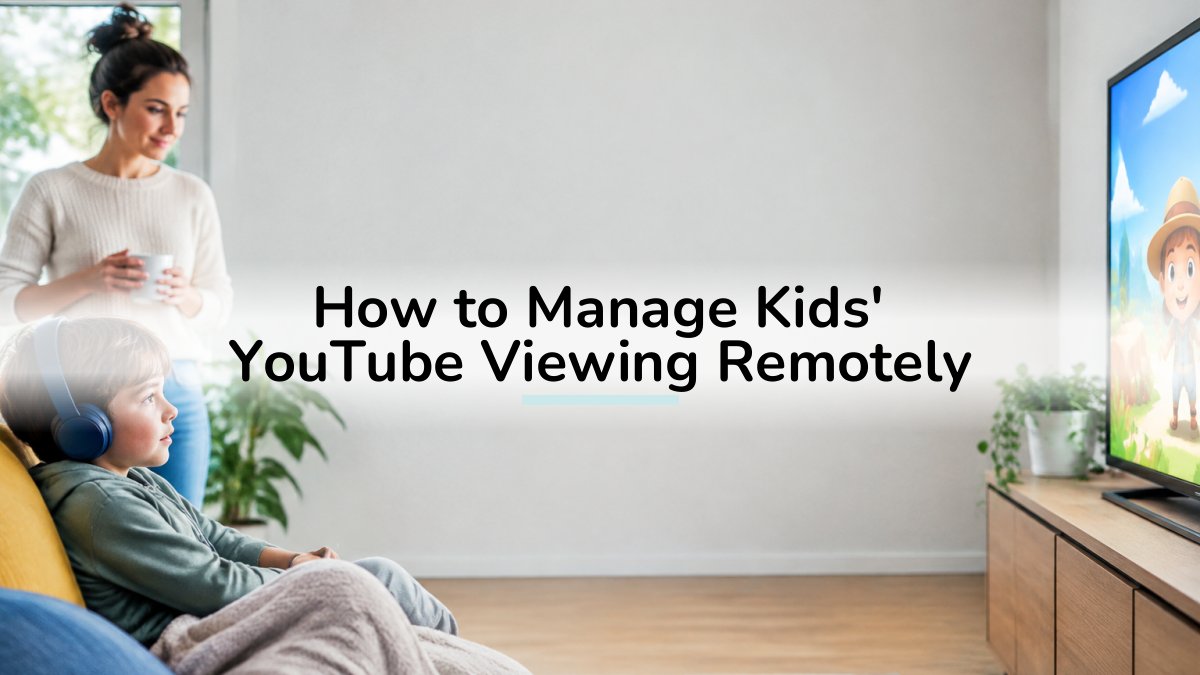
You manage kids' YouTube viewing remotely by creating a supervised account from your own phone or laptop, then changing content settings, search availability, blocked channels, and watch history from your parent account without touching your child's device. Only the first sign-in on the child's device must happen in person.
- Do the supervised account setup from your own device; only the final sign-in happens on your child's device.
- Keep search off for younger children, since search opens the door to recommendation rabbit holes.
- Use a separate sign-in for the child profile so your password cannot be used to switch back.
- On Android, pair YouTube app settings with a device PIN, restricted app installs, and screen time limits.
- Review watch history on a weekly schedule, because an empty history is a signal something changed.
Table of Contents
- Why Remote Management Beats Checking the Screen
- YouTube Parental Controls: What Google Gives You
- Setting Up a Supervised Account Step by Step
- How to Manage Kids' YouTube Viewing on Android
- Parental Controls on YouTube TV and Shared Devices
- How to Monitor Your Child's YouTube Watch History
- Where Built-In Controls Fall Short and What to Do Next
- Why Remote Management Beats Checking the Screen
- Start Your Watchly Player Free Trial
- Frequently Asked Questions
Why Remote Management Beats Checking the Screen
Uncontrolled YouTube is a threat to your children.
That is why remote management matters. You cannot sit beside a child every time they hold a tablet.
At Watchly Player, we built our whole product around that idea.
Here is what most guides get wrong: they treat parental controls as a one-time setup.
Below, we break down exactly how to manage kids' YouTube viewing remotely, from Google's built-in tools to the gaps they leave open.
YouTube Parental Controls: What Google Gives You
Google offers two main paths: YouTube Kids and supervised accounts on regular YouTube. They are not the same product, and picking the wrong one is the most common reason parents end up frustrated. Here is the comparison most guides skip.
| YouTube Kids | Supervised YouTube account | |
|---|---|---|
| Best for | Younger children (roughly preschool to early elementary) | Older kids ready for regular YouTube with guardrails |
| Content pool | Curated, smaller, kid-focused | Full YouTube catalog, filtered by content setting |
| Content settings | Age bands (Preschool, Younger, Older) or hand-picked channels | Explore, Explore More, Most of YouTube |
| Search | Can be turned off | Can be turned off |
| Watch history | Visible to parent | Visible to parent |
| Blocking | Block videos and channels | Block videos and channels |
| Remote management | Yes, from parent device | Yes, from parent device |
| Weak point | Smaller catalog; older kids outgrow it | Child can switch accounts if password is shared |
YouTube parental controls fall into a few buckets across both products:
- Content settings: choose age bands or hand-pick approved channels
- Search availability: turn search on or off entirely
- Watch history: see what has been watched and clear it
- Blocked videos and channels: report or block content you do not want
The catch is that most of these settings live inside the child's profile. If your child can switch profiles or sign out, the rules stop applying.
Uncontrolled YouTube is a threat to your children, and there are hundreds of research papers about it that could be referenced. Keeping the algorithm from steering children also means setting boundaries around live content, where automated YouTube moderation can help limit what reaches them.
If you want a walkthrough of the supervised setup itself, the Google support guide to supervised accounts covers the official steps.
Setting Up a Supervised Account Step by Step
Setting up a supervised account is the foundation for everything else in this guide. The key thing most guides skip is this: you do the setup from your own phone or laptop, and only the final sign-in needs to happen on your child's device.
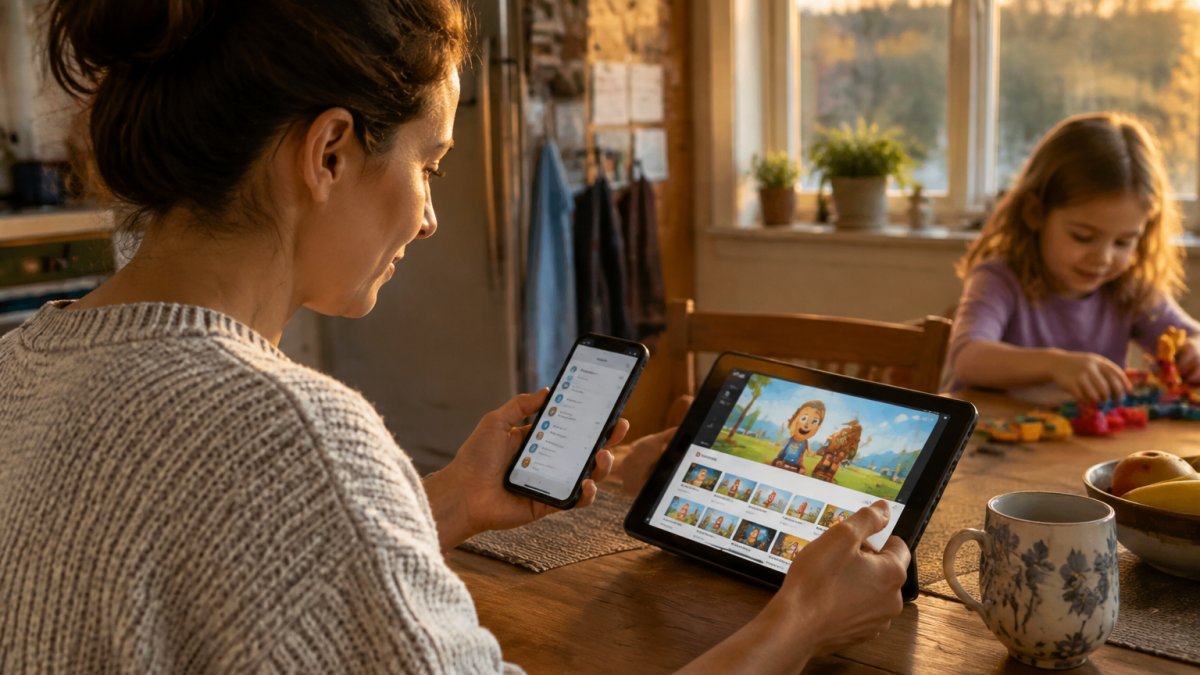
Here is the sequence, with a note on where each step happens.
- Open YouTube while signed in to your Google account on your own device. (Remote, your phone or laptop.)
- Go to your profile and select Settings.
- Choose Parent settings or Add a supervised account.
- Create the child profile with your child's name and birth year. (Remote.)
- Pick a content setting that matches their age. (Remote.)
- Decide whether search stays on or off. (Remote.)
- Sign in to that profile on your child's device. (On-device, this is the one step you cannot do from your phone.)
- Test it: search for something you would not allow and confirm it is blocked. (On-device, but you can verify the result later from your own account.)
Once the account exists, everything after step 7 is remote. You can change the content setting, toggle search, block a channel, or clear history from your own device without touching your child's tablet.
What You Can Change Remotely After Setup
From your parent account, on your own device, you can:
- Change the content setting (age band or approved-content mode)
- Turn search availability on or off
- Block or unblock specific videos and channels
- Review and clear watch history
What you cannot do remotely:
- Sign the child profile in on a new device for the first time
- Change the device-level PIN or app-install restrictions (those live in the operating system, not YouTube)
- Force a settings sync if the child's app is offline or signed out
Watch out: if the child profile shares a password with your main account, your child can switch back to your profile and bypass everything. Use a separate sign-in, and keep that password out of the child's device.
For a deeper walkthrough of the setup screens, see this guide on how to create a child profile on YouTube.
Creating the Child Profile
The child profile is where your rules live. Give it a clear name so you can spot it in the account switcher, and set the birth year accurately. A wrong birth year pushes the content settings into the wrong age band, and you will spend weeks wondering why odd videos keep appearing.
Choosing Content Settings and Search Availability
Content settings are the biggest lever you have. The stricter the setting, the smaller the pool of videos your child can reach.
With search off, your child can only watch what appears on the home feed and approved channels. That kills most rabbit holes.
Our advice: keep search off for younger children and turn it on only when you are comfortable reviewing what they find.
How to Manage Kids' YouTube Viewing on Android
Managing YouTube viewing on Android comes down to two things: the YouTube app's own settings and Android's device-level controls. Use both, because either one alone is easy to get around.
Start inside the YouTube app:
- Sign in to the child profile, not your own
- Confirm the content setting matches what you chose on your account
- Check that search availability is set the way you want
- Turn on restricted mode as a second layer
Then lock the device itself:
- Set a device PIN your child does not know
- Restrict app installs so new apps need your approval
- Block account changes in the device settings
- Set a screen time limit at the operating system level
This Android digital wellbeing guide explains where the device-level limits live.
Parental Controls on YouTube TV and Shared Devices
Parental controls on YouTube TV work differently, and shared devices are the hardest case of all.
Here is how we would handle a shared living room device:
- Create a separate profile for each child on the TV
- Set a profile PIN so switching requires you
- Turn on restricted mode for the TV app
- Keep the main profile signed in to your account, not theirs
- Review the watch history on the TV profile weekly
The weak point is the remote. A child with a remote can often reach the profile switcher in a few clicks.
Best for: families with one shared TV and younger children. Skip if: your children mostly watch on personal tablets, where device-level controls matter more than TV profiles.
How to Monitor Your Child's YouTube Watch History
Monitoring can be harder than it looks, because native YouTube watch history can be cleared. Your child can wipe it in two taps, and you would never know what was watched.
What you can see from your parent account:
- Videos watched on the child profile
- Search terms used, if search is on
- Channels the child has engaged with
What you cannot reliably see:
- Anything watched after history was cleared
- Viewing on a device signed in to a different account
- Time spent, in any usable detail
The fix is to check history on a schedule rather than on suspicion. Pick one day a week and review it from your own phone.
For a fuller method, read our guide on how to monitor what your kid watches on YouTube.
Where Built-In Controls Fall Short and What to Do Next
Built-in controls have several known gaps worth understanding.
- Account switching: a child who knows your PIN is back on your profile
- Cleared history: the record disappears with two taps
- Shared devices: the TV profile is only as strong as the remote
- Sync gaps: settings changed on the web sometimes do not reach the app
Each gap has a workaround, but stacking workarounds gets old fast. That is the honest case for a dedicated tool: one place where the rules live, enforced from your account rather than your child's device.
This is also where remote management earns its keep. If you want proven methods for closing the loopholes, see prevent kids bypassing screen limits.
Why Remote Management Beats Checking the Screen
Remote management can reduce the day-to-day negotiation, since rules set from your own device do not depend on being in the room.
Watchly Player is built for exactly this.
You get separate profiles for each child, each with its own library and limits.
That is how you expose the best of YouTube to your kids without the rest of it coming along.
Start Your Watchly Player Free Trial
You can see the difference in one evening. Start a free trial and set up a profile for each child.
With Watchly Player you get:
- AI-checked videos against 21 safety themes
- A parent-approved library only, with no ads or comments
- Customizable daily limits, bedtimes, and breaks
- One profile per child, managed from your account
Explore their favourite videos, your viewing rules and see how the setup works for your family. If you want the reasoning behind the algorithm problem first, read why the YouTube algorithm targets kids.
Frequently Asked Questions
Can I manage my child's YouTube settings from my phone?
Yes. Once your child is on a supervised account linked to your parent account, you can change content settings, approve videos, block channels, and review watch history from the YouTube app on your own phone. The catch is that some settings only appear in the mobile app and not on the web, and changes can take a few minutes to sync to a device the child is already using. If a setting will not stick, sign out and back in on the child's device, then recheck the parent account.
How do I monitor my child's YouTube watch history remotely?
Open the parent account, select the child profile, and go to the activity or history section to see what has been watched and search terms used. History is only useful if it stays on, so check that the child cannot pause or delete it. Built-in history shows titles, not context, so a cartoon with a misleading thumbnail looks the same as a safe one. Tools that analyze the video itself, such as Watchly Player's transcript analysis against 21 safety themes, go beyond a video's title.
Do parental controls on YouTube TV work the same as on a phone?
Not exactly. On a TV, the signed-in account decides what is available, so the child profile has to be selected on the TV itself before viewing starts. You can restrict content and block channels from your phone, but you cannot switch the active profile on the TV remotely. Shared TVs also tend to stay signed in to one account, which is why many families use a separate profile or a curated player for the living room and keep the main account for adults.
Why do I need another tool if YouTube already has parental controls?
Built-in controls can filter by age band and channel. Watchly Player removes ads, comments, and autoplay recommendations, and lets you approve the videos your child watches. Uncontrolled YouTube remains a real threat to children, and there are hundreds of research papers documenting the effects of unrestricted algorithmic feeds on young viewers. Watchly Player takes a different approach: it analyzes video transcripts against 21 safety themes, removes ads, comments, and autoplay entirely, and lets you expose the best of YouTube to your kids from a library you approve yourself.
The hard part is not finding controls. It is finding controls your child cannot undo. That is the problem Watchly Player was built to solve, with AI-checked content, automatic time limits, and profiles you manage from your own phone. Get started with Watchly Player and give your kids the good side of YouTube, with none of the rest.