Last Updated: November 4, 2026
Quick Summary
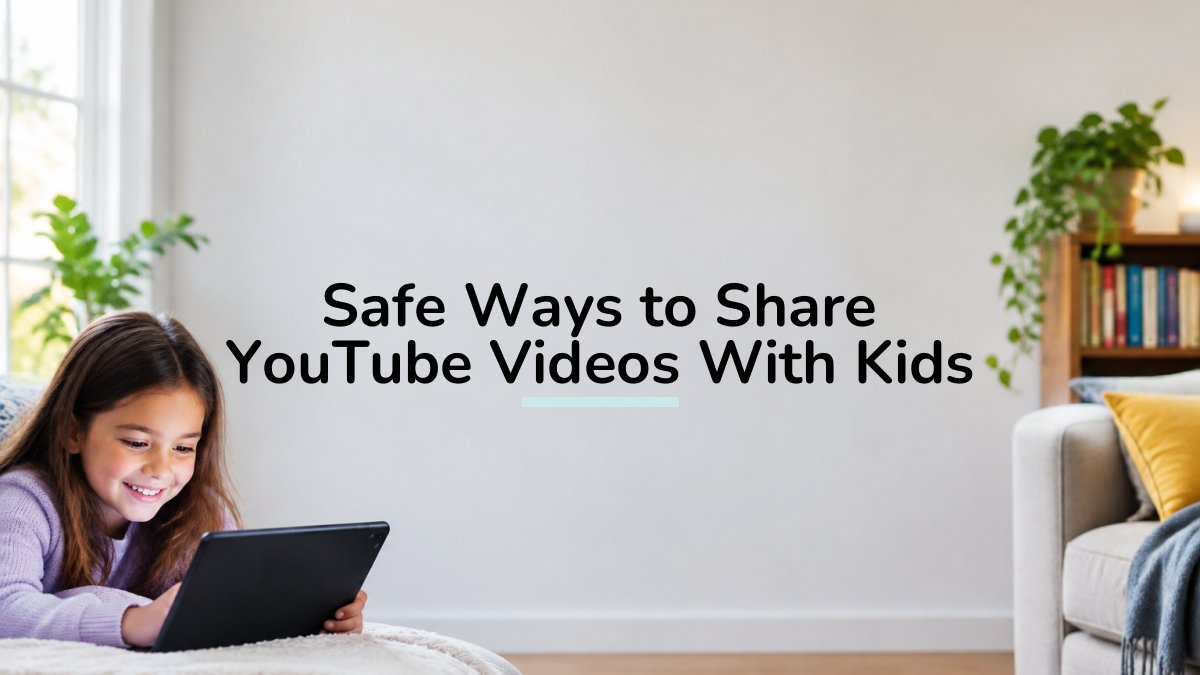
To share YouTube videos safely with kids, send a clean link that opens only the approved video, with no ads, comments, or suggested clips around it. Use a kid-safe player, approve individual videos rather than channels, and set daily watch time and bedtime limits.
- Approve individual videos, not channels, since a channel can upload anything tomorrow.
- Watchly Player analyzes video transcripts against 21 safety themes before a parent approves a video.
- Turn off autoplay in standard YouTube and clear watch history as a fast but partial fix.
- Unlisted links are not private: anyone holding the URL can watch and forward it.
- For ages 6-8, use an individual profile, fixed daily limit, no search, and an approved library only.
Table of Contents
- Why Sharing a Standard YouTube Link Puts Kids at Risk
- How to Create a Safe YouTube Link for Kids
- YouTube Kids Parental Controls and Where They Fall Short
- Sharing a Safe YouTube Link for Students and Classrooms
- Turning Off YouTube Autoplay and Recommendations for Kids
- Comparing Your Privacy Options: Public, Unlisted, Private, and Embedded Video
- Age-Specific Rules and Device-by-Device Setup for Family Sharing
- Start Your Free Trial and Share Only the Best of YouTube
- Frequently Asked Questions
Why Sharing a Standard YouTube Link Puts Kids at Risk
When you share YouTube videos with a child, the risk starts with the page itself, which is built for adults, not kids.
The link matters as much as the video. Hand over a raw link and you hand over the whole page.
Uncontrolled YouTube is a real threat to your children. Research on recommendation engines has repeatedly documented how they can pull kids from harmless clips into age-inappropriate content.
What Kids See the Moment a Video Ends
The video stops. The algorithm takes over.
- Autoplay queues the next clip automatically
- Suggested videos appear in a grid beside the player
- Comment sections open the door to crude language and stranger contact
- Ads interrupt with content you never approved
A five-minute cartoon becomes a forty-minute spiral. Your child never chose that path. The algorithm chose it for them.
How Uncontrolled YouTube Becomes a Threat to Your Children
The danger is not one bad video. It is the drift. Each recommendation nudges your child a little further from what you approved, and no parent can screen every step.
Before sharing any link, a worried parent can check if a specific YouTube video is safe for their child with an instant safety report covering violence, language, and mature content.
How to Create a Safe YouTube Link for Kids
A safe YouTube link for kids is a share link that opens only the approved video, with no ads, comments, or suggested clips around it.
That is what Watchly Player does. Our AI analyzes video transcripts against 21 safety themes, and the video is made available only once a parent approves it. Your child then watches that video on a clean page with nothing else attached.
Step-by-Step: Cleaning Up a Share Link
Here is the practical process we recommend to every family:
- Pick the exact video you want your child to see
- Review it against your family's standards before you share it
- Add it to your child's approved library
- Set the daily watch time and bedtime window
- Share the clean link or open the player together
- Review the watch history later to see what was viewed
Watch out: the most common mistake is approving a channel instead of a video. A channel can upload anything tomorrow. Approve individual videos and re-check when you add new ones.
YouTube Kids Parental Controls and Where They Fall Short
YouTube Kids parental controls give you a starting point, but they are not a full shield. For a direct comparison of YouTube Kids vs standard YouTube, including age settings and content safety, see the full guide.
The gap is the recommendation engine. If you want to understand that drift, read why YouTube Kids recommends weird videos to kids and how to stop it.
The second gap is enforcement. Controls live inside the app your child uses. A determined seven-year-old learns the workarounds. Our view is simple: rules a child can switch off are not rules.
Sharing a Safe YouTube Link for Students and Classrooms
A safe YouTube link for students has to do three things: show the right clip, hide the distractions, and stay compliant. Teachers cannot afford ads mid-lesson, comment sections on screen, or a sidebar that derails the class.
The best setup is an ad-free, comment-free player that shows one approved video at a time. For a full walkthrough of fair-use basics and classroom-friendly options, see how to download educational YouTube videos for the classroom.
Three habits that keep it clean when you share YouTube videos with students:
- Share one video, never a channel or playlist
- Test the link on the classroom device before the lesson
- Keep a short approved list per topic so you are not searching live
Turning Off YouTube Autoplay and Recommendations for Kids
Turning off autoplay is the single fastest fix a parent can make. In standard YouTube, open Settings and switch autoplay off, then clear the watch history so the algorithm stops building on old viewing.
That helps. It does not solve the problem.
Suggested clips still appear beside the player, and autoplay can be switched back on. A child who knows the menu can undo your settings in seconds. The lasting fix is a player where autoplay and recommendations do not exist at all.
Comparing Your Privacy Options: Public, Unlisted, Private, and Embedded Video
Privacy settings decide who can find a video, and each option carries a different trade-off. Most guides stop at the table. The part that actually matters for families is what each setting protects, and what it quietly leaves exposed.
| Setting | Who can find it | Who can watch | What it does NOT protect | Best for |
|---|---|---|---|---|
| Public video | Anyone via search and recommendations | Anyone | Nothing, it can surface in suggested feeds and autoplay queues | Public content only |
| Unlisted video | Only people with the link | Anyone with the link | The link itself: anyone who forwards it, screenshots it, or pastes it into a group chat can open it | Sharing with family |
| Private video | Nobody by search | Invited accounts only | Convenience, grandparents and shared devices need to be signed in to the right account | Small trusted circles |
| Embedded video | Depends on the host page | Anyone on that page | The host page's own ads, comments, and recommendation widgets unless the host strips them | Clean viewing pages |
What Link-Sharing Actually Protects, and What It Doesn't
An unlisted link is often described as "private," and that word does a lot of misleading work. Unlisted means the video will not appear in YouTube search or on your channel page. It does not mean the video is locked.
A common pattern is a parent sharing an unlisted link with one grandparent, who forwards it to a family group chat, where a cousin opens it on a school device. When private links make access cumbersome, sharing digitized family videos through a carefully chosen method can keep relatives connected without widening the audience by accident.
Where Embedding and Third-Party Players Change the Math
Embedding a video inside a controlled page is the option most guides skip.
Privacy-conscious parents should also ask what happens to viewing data. A clean video page is only as safe as the company behind it.
Uncontrolled YouTube remains a threat to your children, and hundreds of research papers document how recommendation systems pull kids from approved content into strange or age-inappropriate material.
Age-Specific Rules and Device-by-Device Setup for Family Sharing
Family sharing works best when the rules match the child. A three-year-old and an eleven-year-old need very different guardrails, and the same rule applied to both usually fails the older child and frustrates the younger one.
What we recommend by age:
- Ages 3-5: co-viewing only, short sessions, one approved video at a time, screen within arm's reach of an adult
- Ages 6-8: individual profile, fixed daily limit, no search, approved library only
- Ages 9-12: approved library plus a bedtime window, with history review and a short conversation about why the rules exist
- Ages 13+: shared expectations rather than silent controls, talk about what they watch, and keep the clean-player habit for shared family screens
The age bands matter less than the pattern: younger children need the environment controlled for them, older children need the reasoning explained so the rules survive contact with a friend's device.
Device-by-Device Setup
Device setup is where most family rules quietly break. The same child, the same rules, three different screens, and only one of them is actually locked down.
On a phone or tablet, the goal is to make the safe player the path of least resistance.
On a desktop or laptop, the browser is the weak point.
On a smart TV, sign in to the child profile so the living room matches the tablet.
Troubleshooting the Common Failures
Three problems come up again and again. First, the child learns the passcode or watches a parent type it, change it periodically and avoid typing it in view. Second, a grandparent or babysitter hands over an unlocked phone "just for a minute", leave a short note on the device or a printed card explaining which app is allowed. Third, the rules are set on the tablet but the old phone in the drawer still has the standard app signed in, audit every device in the house once a season, including the ones nobody uses daily.
Watch out: setting rules on one device and leaving another unmanaged is the most common hole. A child will find the unmanaged screen.
If you want a fuller routine, these mindful media habits to build with your kids pair well with device-level controls. Uncontrolled YouTube is a real threat to your children, hundreds of research papers describe how quickly recommendations drift, and device setup is the layer that keeps that drift away from the screens your family actually uses.
Start Your Free Trial and Share Only the Best of YouTube
Uncontrolled YouTube is a threat to your children, and hundreds of research papers back that up. The good news is that you do not have to ban the platform.
Watchly Player was designed by parents for parents. Our AI analyzes video transcripts against 21 safety themes. Each child gets an individual profile with their own approved library.
Start your free trial with Watchly Player and give your kids a safe video page built for them, not for an algorithm.
Frequently Asked Questions
How can I share a YouTube video with my child safely?
Use a watch link with autoplay and recommendations switched off, or share the video through a curated player so your child only sees the clip you approved. Avoid sending the raw URL from the share button, because the page it opens pulls in suggested clips, comments, and ads. If you want a repeatable setup, build a small approved library per child, then send links only from that library. This keeps the safe ways to share YouTube videos with kids predictable rather than dependent on what the algorithm shows that day.
Is YouTube Kids safer than regular YouTube?
YouTube Kids filters the catalogue and removes comments, but it still runs its own recommendation feed, so a child can drift from one clip into unrelated content. Regular YouTube with a child profile and Restricted Mode is stricter on some fronts but still shows ads and suggested videos. Neither option gives you item-by-item approval. A parent-approved library, where every video is checked before it reaches your child, closes that gap and removes autoplay entirely.
Can I share a YouTube video without exposing my child to recommendations?
Yes. The practical options are an embedded video on a clean page, a third-party safe video player that strips the surrounding YouTube interface, or a link opened in a viewer where autoplay is disabled. Each removes the suggested clips rail and the end-screen grid. Check the player's privacy settings before you rely on it, since some embed tools still load YouTube tracking scripts. A player that never sells or rents your family's data is the safer default.
How do teachers share a safe YouTube link for students?
Post the link inside your learning platform rather than in a chat, switch off autoplay, and preview the end screen so no unrelated clip appears when the video finishes. For repeated use, add the video to a class playlist you control and share that instead of individual URLs. Check that captions work and that the content suits the age group before the lesson. A clean video page also removes comments, which matters when students are watching on their own devices.